
Sign into the software. Your home page will appear that looks like this:
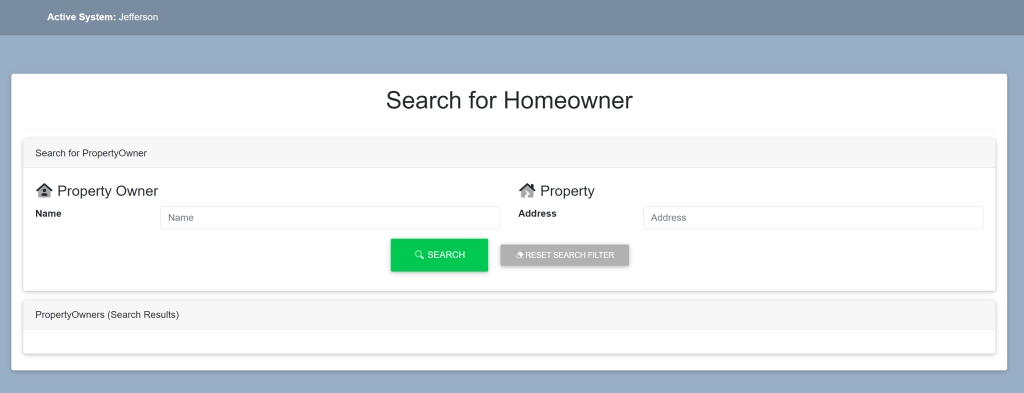
Within the Search For Property Owner box, locate the search bar under Property to the right of Address.
Type in the address (this can be the entire address, only numbers or just the street name). It will looks like this:
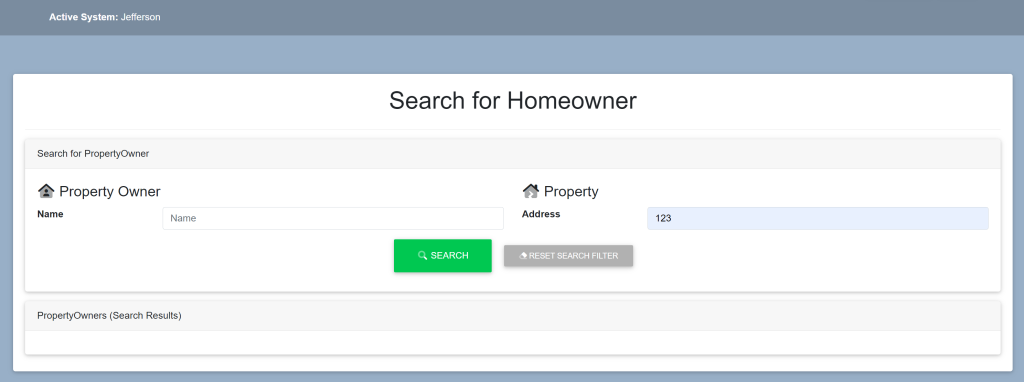
Select the green button titled ‘Search’.
A list of properties alongside their owners will appear within the Property Owners (Search Results) box.
Select the property in which you wish to view the communications. This will take you here:
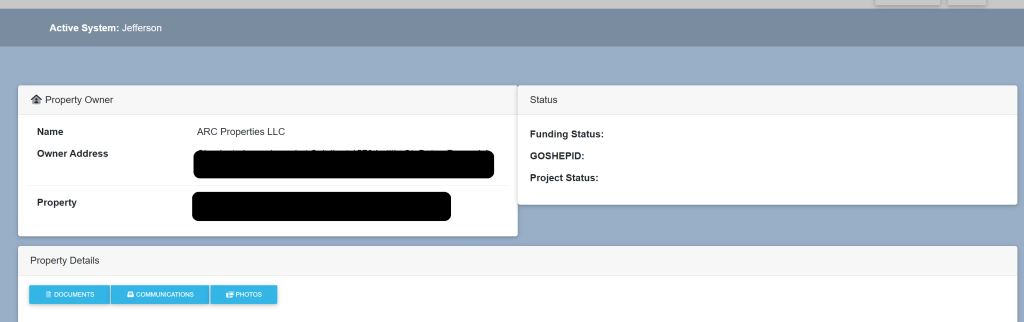
Within the Property Details box, select Communications. This will take you here:
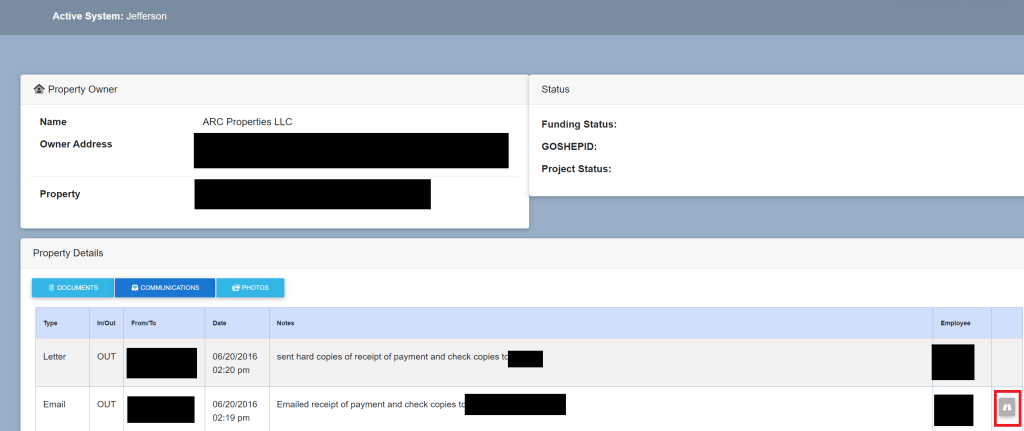
A list will be provided within the Property Details box.
The Type, whether it was sent In/Out, Date, Notes and Employee will be shown.
To view the correspondence, select the document icon (outlined in red).
A new tab will appear in your web browser providing you access to the document.